Features

Everything 3D Thing can do, in plain words

Send a 3D model, set it up once and share a link. Here is everything the link can do, grouped by the job you have.

No card needed. The demo opens after a short form.

Look around

What can people do when they open the link?

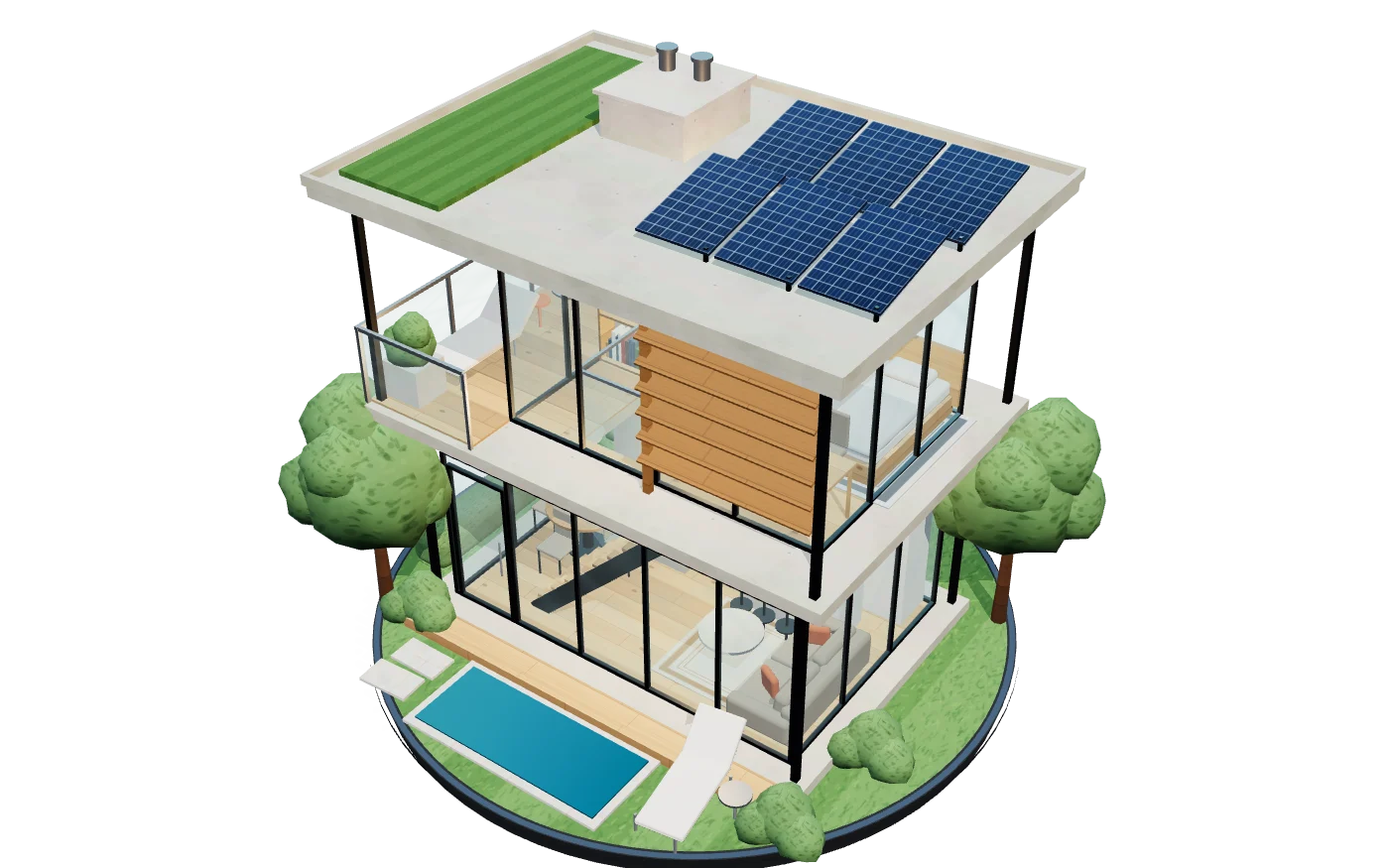
Four ways to look at one model, one button apart. The model here is live: drag it to look around.

Spin it and look closer

Drag to turn the model, and pinch or scroll to zoom. The link opens on the view you chose, and one button puts it back.

4
ways to look
0
apps to install
Live 3D · Around

See the whole layout from above

Overview shows the model from above at an angle, like a doll’s house. Floor plan looks straight down, with a height slider that cuts the top away so you can see into one floor.

Live 3D · Overview

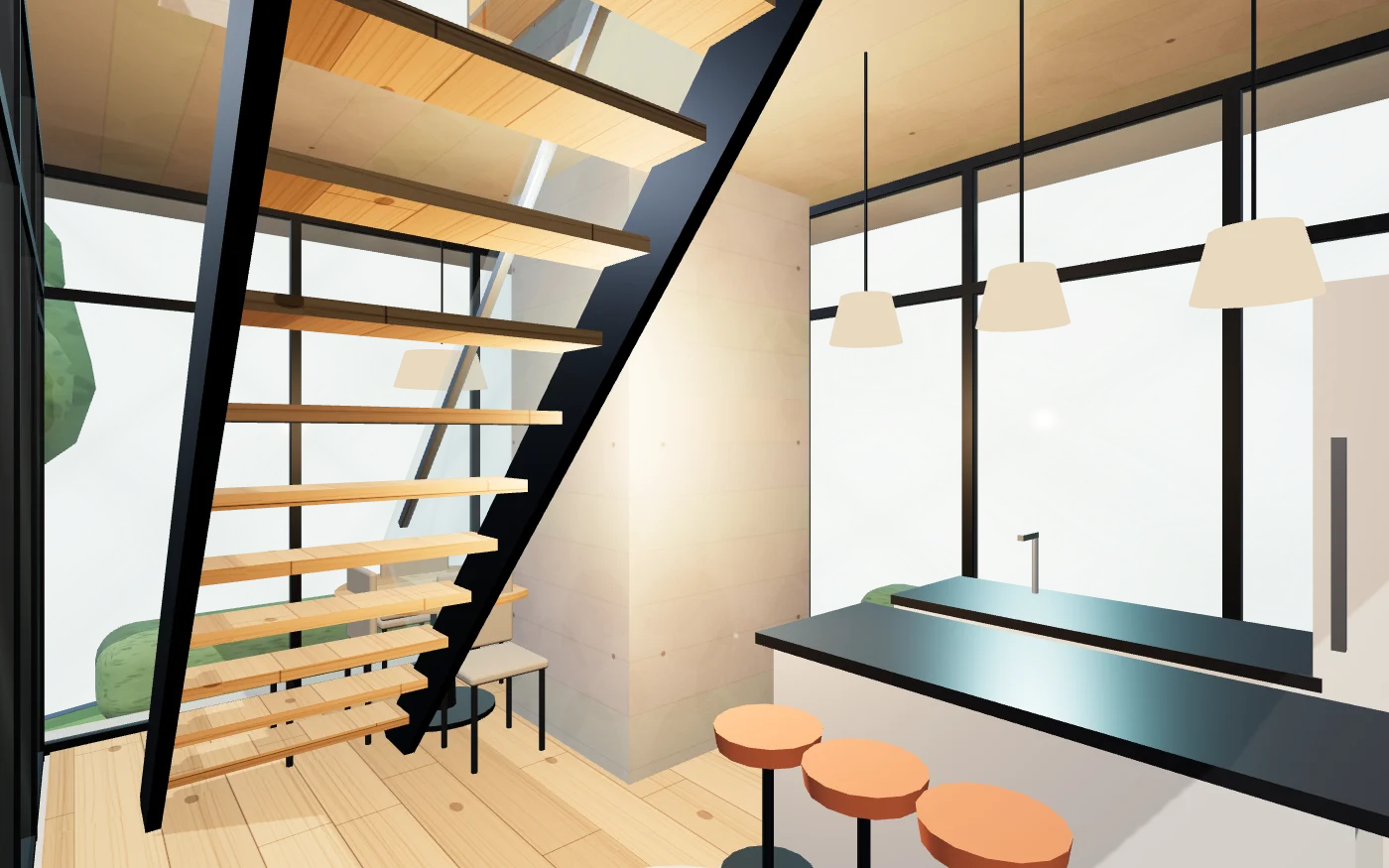
Walk inside at eye height

The camera stays at eye height and stops at walls and furniture. Stairs and ramps work. Click or tap a spot on the floor and it walks there.

  • Keyboard: W A S D or the arrow keys.
  • Touch screens: a thumb joystick and a look pad.
  • One button takes you back to spinning it around.

The touch controls are checked in phone-sized browser windows, not yet on a real phone.

Live 3D · Walk
Live 3D · Around

The real viewer

This is what opens at the other end

The model above is drawn by this page. These are the same views in the product itself, captured from the running viewer with its sample room.

The same room in the viewer’s overview mode, seen from above at an angle like a doll’s house.
Overview: the sample room from above at an angle.
The 3D Thing viewer in floor plan mode: the demo room seen straight down, with the view mode switch at the top.
Floor plan: straight down, with the view buttons at the top.
The same room in walk mode at eye height, with a ring on the floor where a tap or a click will walk to.
Walk: the ring on the floor shows where a click or a tap will walk to.
The viewer in a phone-sized browser window in walk mode: the room at eye height, a thumb joystick, and the mode buttons along the bottom.

On a touch screen

The same link opens in a web browser, with a thumb joystick for walking on a touch screen. Nothing to install for the person opening it.

Checked in phone-sized browser windows, not yet on a real phone.

Show and explain

Show them where to look, and let them measure

Saved views, a ruler, pins on the parts that matter, and a look that suits the device.

  • Save the best views, then play them as a tour

    Frame a view and save it with a thumbnail. Visitors click through your saved views in order, or play them full screen as a tour.

    • Reorder or rename views without touching the model.
    • Choose the view the link opens on.
  • Measure it

    Distances, paths, areas and angles, snapped to the corners of the model, in metres, centimetres, millimetres, feet or inches.

    • In the viewer a link opens, not in the frame on your own website.
  • Pin a note on the part that matters

    Put a pin on a part with a note, a link, a view to fly to or a change of finish. A pin hides when the model turns in front of it.

  • Choose a look: Fast or Cinematic

    Fast grades the colour and can give bright surfaces a glow, for a small fraction of what Cinematic costs. Cinematic adds the real bloom, soft shadows in corners, depth of field and film grain, for a computer that can take it.

    • Ready-made looks such as Studio, Moody, Noir and Lit, and one reset back to neutral.
    • A light panel or a television screen reads as lit in the browser, with nothing to install.

Try options

Can people try colours and options?

You decide what can change. They see it at once, with a price if you add one, and you can keep a record of what they chose.

Colour and option picker

Let people try it

You choose what people can change: a finish, a paint colour, a part shown or hidden, one part swapped for another, a size on a slider, or a chair they can slide into place. They see it at once, with a running total if you add prices.

  • Colours can come from a paint or fabric maker’s shade card file (.aco, .ase or .acb) or a CSV list.
  • Every combination has its own link, and a QR code opens the same choice.
  • On your own website, the picker tells your page what the visitor chose, with each price and the total.
A client’s view of a configurator: cushion fabric set to Terracotta 0331 from a sample shade card, a total of $1,570, and a saved option marked Approved with a Download the record link.
A sample picker as a visitor sees it: choose a colour, see the total.

Approvals

Can I keep a record of what someone chose?

Yes. On a link set to Configure and comment, a client saves a design, ticks one sentence and types their name to approve it. You accept and lock it, or send it back with a note.

  • The record is one file with every decision on that design: who, when, what was chosen and the prices they saw.
  • The client downloads theirs from the link, in the browser they approved in. You download yours from the project.
  • It is a paper trail, not a legal signature. Use your own contract for anything binding.
The first page of an approval record file: who approved, when by the server’s clock, the sentence they agreed to, the version, the configuration code, what was chosen and the figures they were shown.
The first page of a sample approval record.

Saved looks

Switch between day and night, or option A and B

A saved look holds the lighting, the materials and what is shown or hidden. Save two or more and whoever opens the link gets a switch.

  • Day and night, furnished and empty, or two ways to stage a room.
  • The change fades instead of jumping, and you choose the look the link opens on.
A sample room in three saved looks

Simple rules

Make things happen, without code

Set what happens when a visitor does something. Click the kitchen door, and the view flies to the kitchen and switches to the evening look.

  • When: they click or point at a part, reach a saved view, walk near something, or a timer runs out.
  • Then: fly to a view, switch a look, change a finish, show or hide parts, play an animation or show a message.

A sample rule

When
they clickKitchen door
Then
fly to the Kitchen viewswitch to Evening

Share and hear back

Who can open it, and how do you hear back?

Links you control, a frame for your own website, and notes pinned to the exact spot.

Your website

Put it on your own site

Paste one small snippet into your page. It shows the model without the editor around it.

  • With an option picker in it, your page hears what the visitor chose, with each price and the total, and can set a choice itself.
  • Measuring and notes stay in the full viewer, not in the frame.
<iframe
  src="https://app.3dthing.in/?share=ID&embed=1"
  title="My product in 3D"
  width="100%" height="600"
  allow="fullscreen"></iframe>

Notes

Get notes on the exact spot

A reviewer clicks a spot on the model, writes a note and can add up to 4 photos. They need no account.

  • Each note keeps the spot, the view and the options that were showing.
  • You reply in a thread and mark it done. You hear about each new note, and the reviewer gets an email when you reply, if they left an address.
  • Notes are off until you set a link to Configure and comment.
Sample note

Can this door be a bit wider?

Done. Widened by 20 cm.

Take a picture, a 360 panorama or a video

Save the current view as a PNG or a JPG, up to 4K or any size you type, with a see-through background or a watermark. Make a 360 panorama up to 8K from where the camera stands.

  • Add a panorama to the link as a view people can look around in.
  • A turntable video records the model turning, as WebM or MP4.

See when your link is opened

Your project shows how many times each version was opened, day by day for the last 90 days, and which websites sent people there.

  • Nothing about who they are is stored: no address, no browser details, no cookie.

The person you send it to opens a link. No app, no account, no plugin.

Buildings and rooms

Can it show a building before it is built?

Turn a 2D plan into walls, put the sun where it will really be, and check that a visitor can reach every room.

A sample DXF plan of a two-bedroom flat built into 3D walls in the 3D Thing editor, with doors and windows cut as openings, beside the import panel listing 8 walls, 4 doors, 3 windows and four room areas from 5.76 to 40.26 square metres.
A sample plan of a two-bedroom flat, turned into walls, doors, windows and a list of rooms.

Floor plan to 3D

Can it turn a 2D floor plan into 3D walls?

Yes. Upload a DXF or a vector PDF floor plan and 3D Thing builds the walls, with the doors and windows cut out. Handy when there is no 3D model yet.

  • It reads the scale from the drawing and lists the area of every room.
  • Anything it was unsure about is listed, so you can check it.

In the editor’s Advanced mode. A scanned drawing has no lines to read, so it needs a DXF or a PDF saved from a drawing program.

Real sun and sky

Put the sun where it really is

Pick a place, a date and a time, and the sun sits where it really is. Scrub through the day to watch the shadows move.

  • The sky follows the sun: blue at noon, red at sunset, then twilight, stars and a moon.
  • City presets, true north and a Use my location button.
  • The place, the date and the time go out with the link.
10:26 AM

Walkable area

Can a visitor reach every room?

It paints the floor a person can stand on, and says in words which rooms nobody can reach and how narrow the tightest way through is.

  • It also finds a good spot for visitors to start, so a link does not open inside a wardrobe.
The walkable area check in the editor: the floor a visitor can reach painted green, and sentences saying the narrowest way through is about 0.82 m against the 0.60 m a person needs.
The walkable-area check on the sample room.

Bring your model

Which files and programs does it work with?

Open a file you already have, or send it from Blender. Then fix what the export got wrong, in the browser.

Plugins

Send it from Blender

A Send button inside Blender puts the scene in your account, ready to share. The 3ds Max plugin is in preview; it has sent real Corona scenes, with their cameras and textures, from inside 3ds Max 2025. The SketchUp plugin is in preview and has not yet been run inside SketchUp.

  • Materials from Blender, and from Corona in 3ds Max, are converted for you. V-Ray and Arnold are in preview: their conversion is tested, but not yet run inside 3ds Max.
  • Big scenes are made smaller, an upload carries on after a dropped connection, and sending an unchanged file again uploads nothing.
  • Sign in once, with a code the plugin shows you.

Open the file you already have

Open or drop a GLB, glTF, FBX or OBJ, with its textures, in the editor. From Revit, Rhino or Archicad, save one of those files first: 3D Thing cannot open a .rvt, .3dm, .dwg or .pln file directly. AutoCAD 2019 and newer save none of the four, so ask whoever made the drawing for one, or open it in a 3D program that reads DWG and save it from there.

  • Blender 4.2 and newerPlugin: press SendTested in Blender
  • 3ds Max 2023 and newerPlugin: press SendPreview, tested in 3ds Max 2025 with Corona
  • SketchUp 2024 and newerPlugin: press SendPreview: not yet run in SketchUp
  • Revit, Rhino, ArchicadSave a GLB, glTF, FBX or OBJ, then open itNo plugin
  • AutoCADAsk for a GLB, glTF, FBX or OBJ, or save one from a 3D program that reads DWGNo plugin
  • Any program that saves GLB, glTF, FBX or OBJOpen or drop the file in the editorWorks
Get the plugins, or see what to export from each program

Fix the model in the browser

Change what the export got wrong without going back to the program you made it in: a material, a light, a part that is too long, a texture that sits wrong.

  • Move, turn and resize parts, reshape them, and place a texture at real size in metres.
  • 50 steps of undo, and the browser keeps a copy about once a minute in case it crashes.
  • Your model exports back out as GLB or glTF.

Can I check a file before I send it?

Yes, in the free viewer. Open a GLB, glTF, FBX or OBJ and it tells you, in plain words, what is inside and if anything is wrong. No account, and the file never leaves your computer.

  • A 1.7 m person stands beside the model, so a wrong size is easy to spot.

Every line on this page was checked against the product on .